
Efficient workflow
Integrations
Keyboard shortcuts
Navigate, import, and combine from the keyboard—including the central quick search (Ctrl+K) and the full overview in the Help dialog.
At a glance
Move faster: Switch Optimize, Combine, and Download from the keyboard—no clicks in the sidebar.
Less mouse: Clipboard import, zoom, and undo straight from the keyboard.
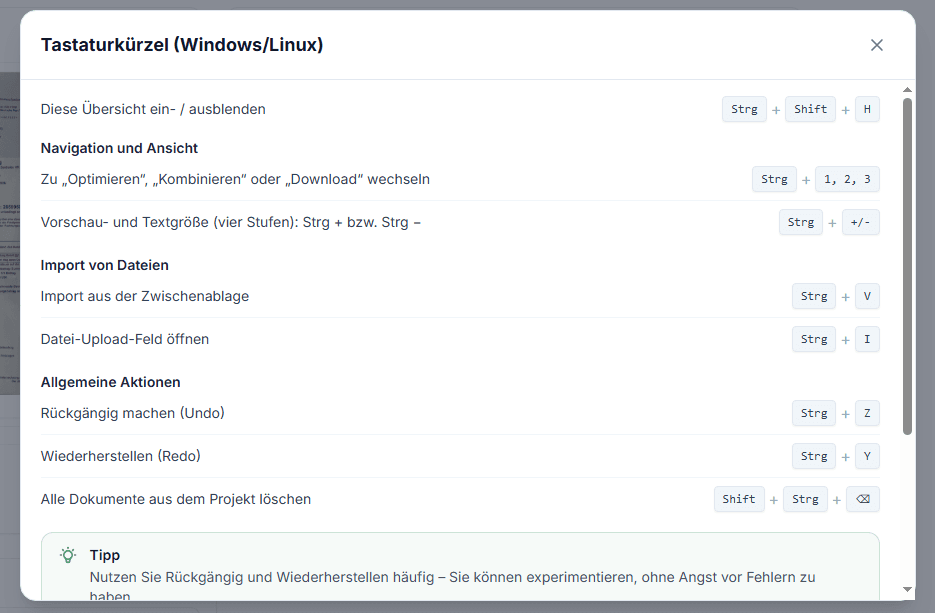
Same as in the app: Ctrl+Shift+H opens the same overview as under Help & support.
Overview in the Help dialog
Same content as under Help & support—available anytime via keyboard.
Show or hide this overview
Opens or closes the keyboard shortcuts window.
Navigation and view
Switch main areas and adjust preview and text size.
Switch to Optimize, Combine, or Download
Moves between the three main workspace tabs.
Preview and text size
Four steps for display in Optimize, Combine, Download, and The Lense.
Import files
Paste files or open the file picker without reaching for the mouse.
Import from clipboard
Pastes images or PDFs you copied earlier.
Open file upload
Opens the file picker to upload.
General actions
Editing steps and clearing the current project.
Undo
Reverses the last action (e.g. in Combine).
Redo
Restores an action you undid.
Delete all documents in the project
Removes all documents from the current project (Backspace or Delete).
Note from the app
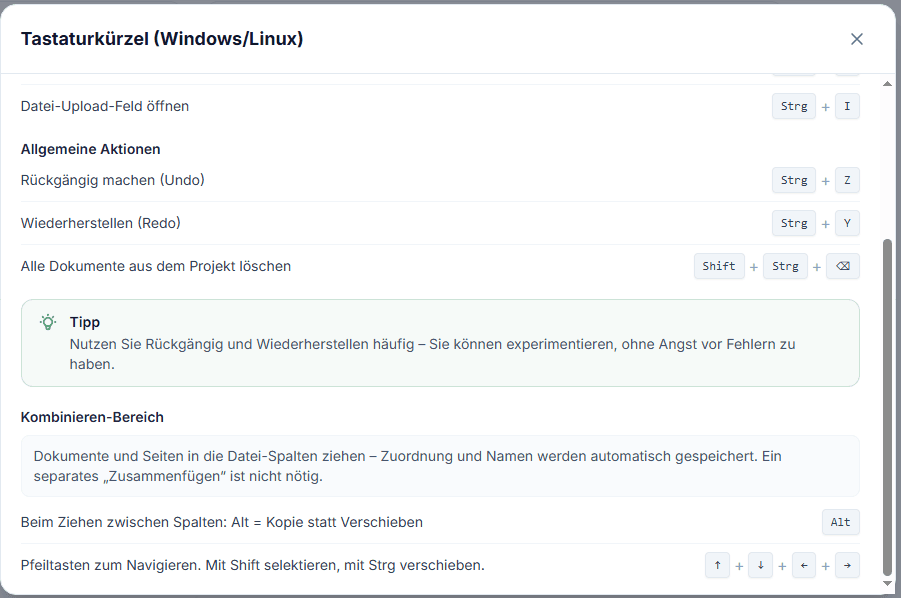
Use Undo and Redo often—you can experiment without fear of making mistakes.
Combine area
Drag documents and pages into file columns—assignments and names save automatically. No separate “merge” step is required.
Copy instead of move
While dragging between columns, hold Alt to copy.
Navigate in columns
Arrow keys to navigate; Shift to select, Ctrl to move.
Quick navigation (Command Palette)
Jump to every major area of the app and appearance settings.
Command palette
Jump to overview, Optimize, The Lense, Combine, Download, help, settings, and dark mode.
View in LexLogik
From the LexLogik team
If you move documents all day, you shouldn’t live on the mouse—shortcuts mirror how we ourselves work in the app.
Try LexLogik in your practice
10-day free trial—all features. No credit card.