Onboarding email - Day 4
Crop in Optimise - area selection
 LexLogik
Day 4: Adjust crop manually
Crop in Optimise - area selection
We built LexLogik so you need as little manual document prep as possible. Documents and their edges are detected automatically and cut out precisely.
Sometimes LexLogik misses the mark - or you want to crop the document differently.
To fix that, open the area selection under Optimise using the crop icon for the source document (on the left):
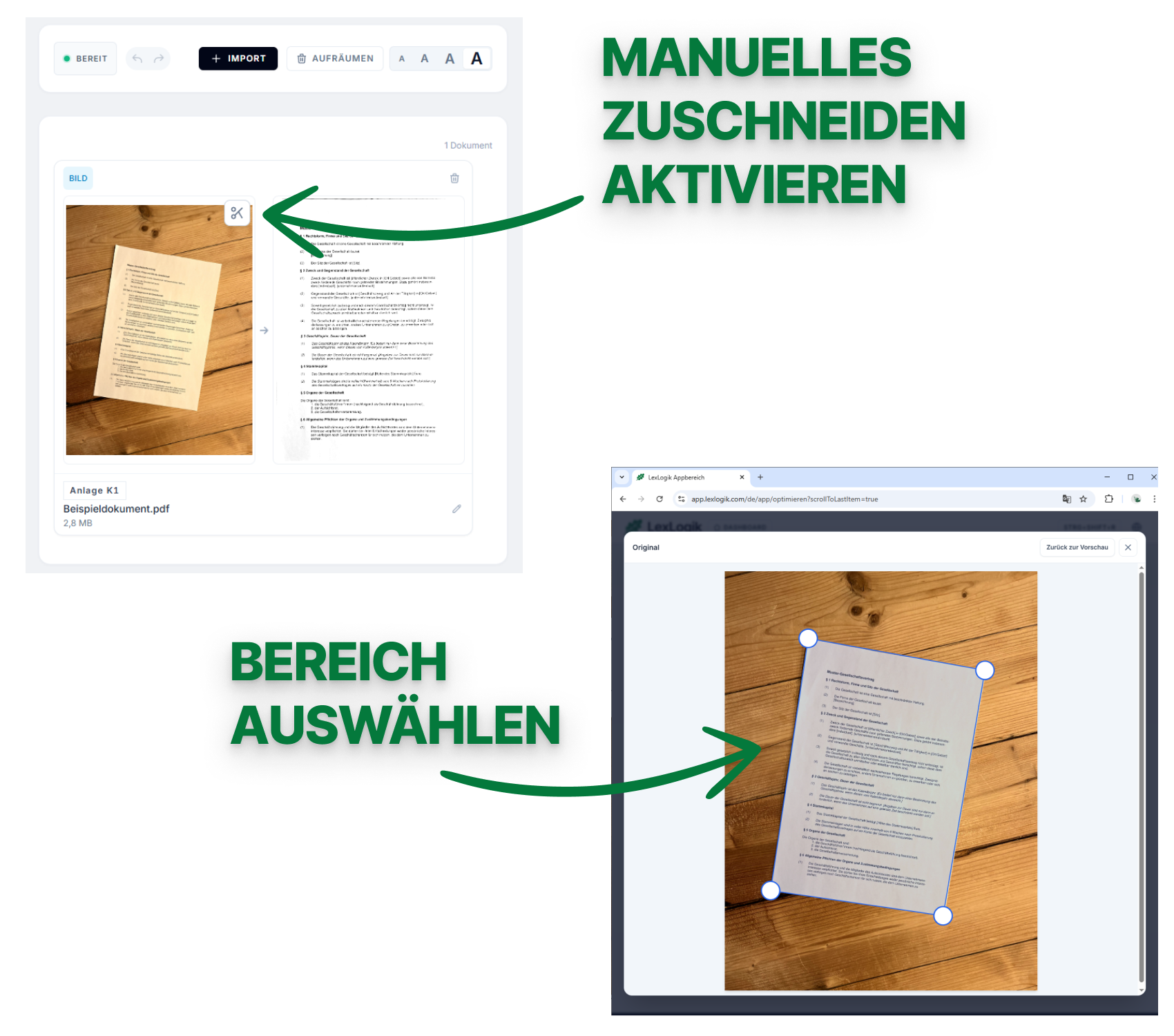
You can pick up to six regions by hand. Every region becomes part of one new document.
After you click Save, you return to the document overview.
If you have questions or feedback, we are happy to help:
info@lexlogik.comYour LexLogik team
Clemens and Jonas
All features are explained here: lexlogik.com/features
All onboarding tips are available here: lexlogik.com/onboarding
We only send a limited number of emails with helpful tips for getting started with LexLogik. If you no longer wish to receive tips, you can unsubscribe below:
Next tip: Shrinking large documents
Unsubscribe from onboarding emails and stop receiving the next tip.