
Integration into your workflow
Export & archiving: results straight where they belong.
Export & archiving: results straight where they belong. No manual moving, no renaming - finished documents land straight in your firm folder. Including structured ZIP archives when needed.
No manual moving, no renaming - finished documents land straight in your firm folder. Including bundling as structured ZIP archives when needed.
Export options at a glance
- Default download via browserWith no extra setup, your PDFs and ZIP bundles land in the usual downloads folder - no setup, no elevated permissions required.
- Direct write access to firm foldersUse the folder icon to define a fixed target directory (e.g. the watch folder for your practice software). Once authorised, LexLogik saves every export straight to that path - bypassing the downloads folder. That removes the manual move step.
- Bundling as a ZIP archiveBundle extensive matter files for delivery or archiving in one click as a ZIP archive. That keeps large sets of individual files manageable and simplifies handing everything to clients or courts in one go.
- Persistent work stateYour editing progress is preserved - even after reloading the page, documents and layout are available again immediately.
Direct download to your chosen folder
Click the folder icon to set a fixed target directory. Once authorised, all documents save automatically to that path - ideal for import folders watched by your DMS.

A searchable PDF after the first run - that is not an add-on for us, but a baseline requirement. Anything that would still need to be done manually afterwards, we want to automate away.
Jonas Maximilian Regul
Managing director · Strategy
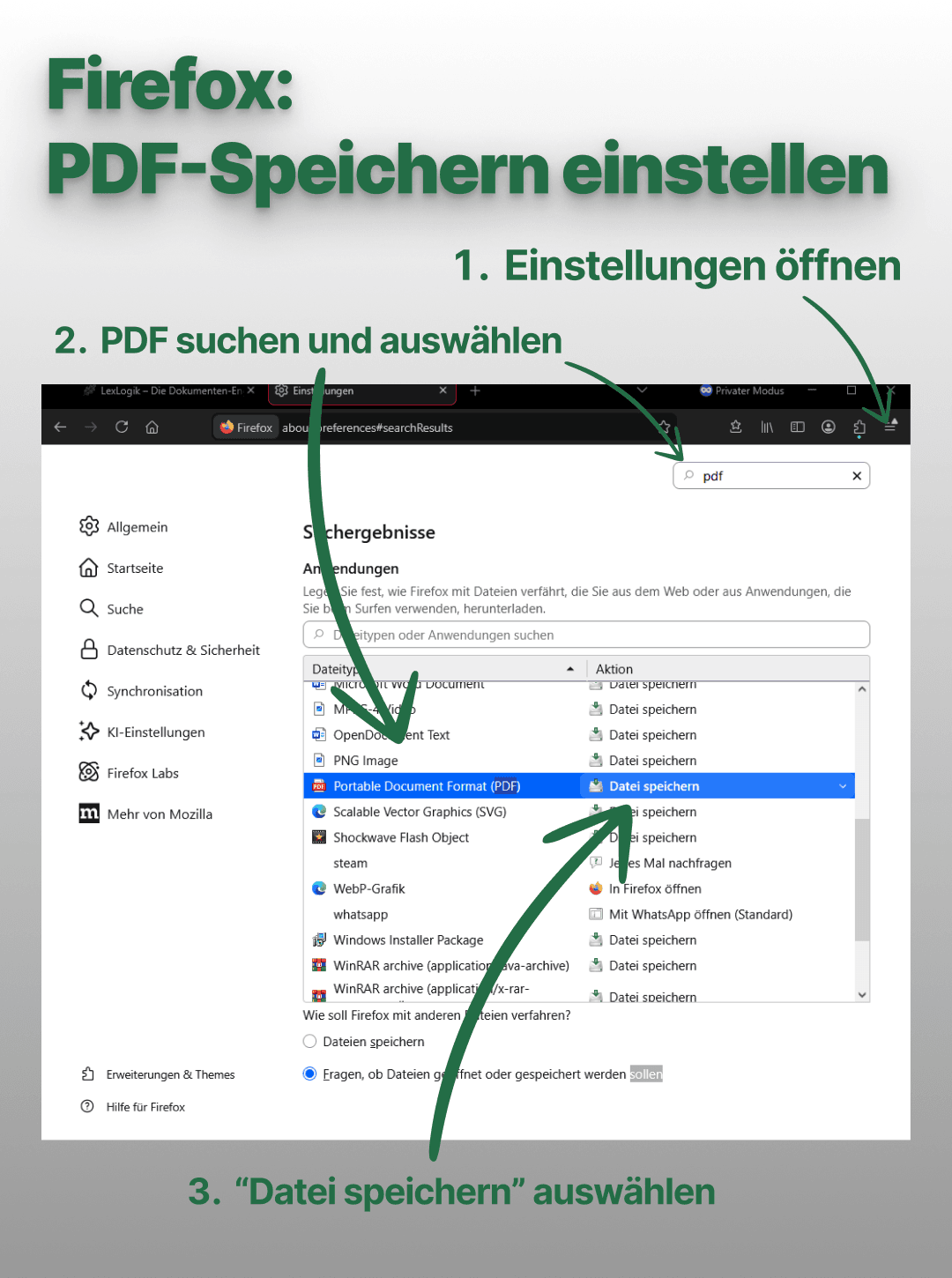
Settings tip for Firefox
The folder feature is available in Chrome and Edge - other browsers use the default download. Firefox users should check whether PDFs open automatically in the browser and set “Portable Document Format (PDF)” to “Save file.”
Try LexLogik in your practice
All features unlocked. No credit card. No automatic subscription.